

PDFs guide
How to Compress a PDF to 200KB for a Form Upload — When the Portal Rejects 203 KB
The form says max 200 KB. Your scan is 4.2 MB. Here is the exact order — rescan settings first, then a 200 KB preset compressor in your browser — so the certificate stays readable and the portal finally accepts the file.
By Pixelandpdf · Published · Updated · 12 min read
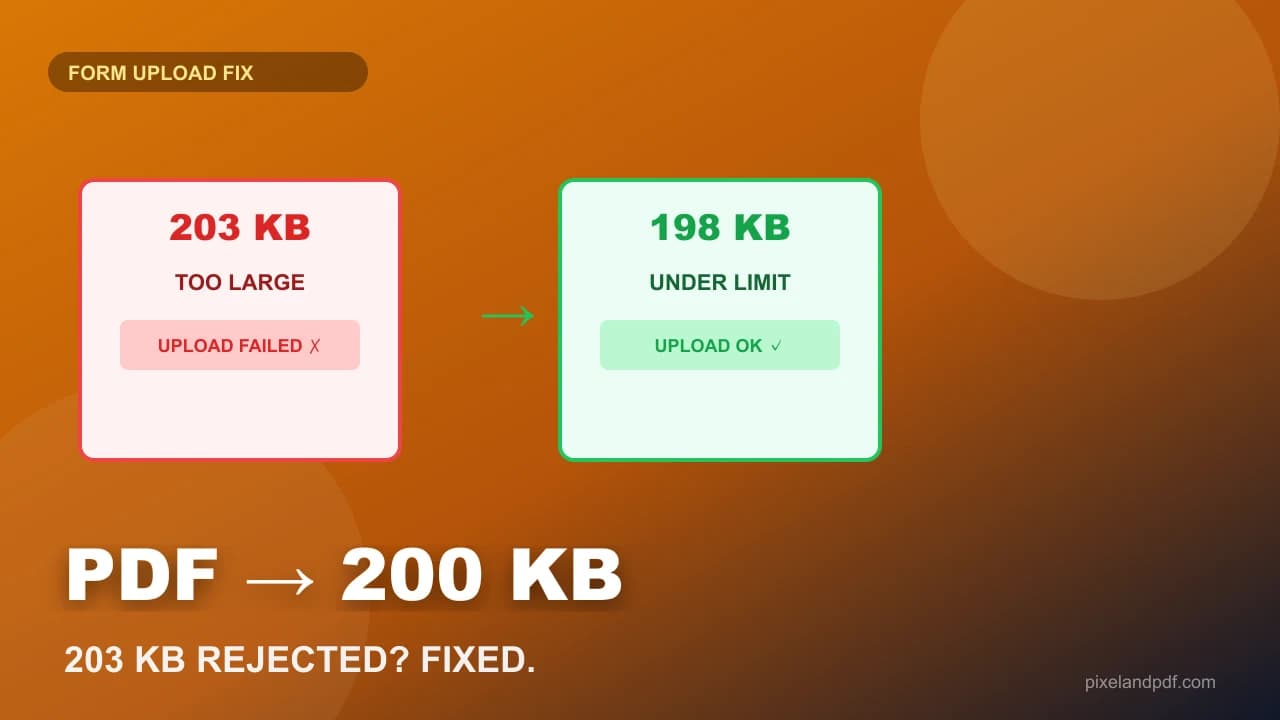
You clicked upload. The portal paused, then returned the same unhelpful line: file size exceeds limit. Your PDF is 203 KB — three kilobytes over a 200 KB ceiling — or maybe it is 4.2 MB and the form never told you the cap until this moment. Either way you are now searching compress PDF to 200KB, and the top results are generic upload boxes that will not explain why a certificate scan ballooned in the first place.
Two hundred kilobytes is the most common hard cap for government forms, exam registrations, job portals, visa supporting documents and insurance claims in India and abroad. It is tight enough that a single page scanned at 600 DPI in colour can fail before you compress at all, and generous enough that a two-page greyscale certificate usually survives if you fix the source before you touch a quality slider.
This guide is only about that 200 KB moment — not general PDF diagnosis, not email attachment limits, not the 1 MB portfolio cap. It covers the exact rescan-and-compress order, how to use a 200 KB preset compressor in your browser without uploading the file, what to check before you submit, and what to do when 200 KB is physically impossible for your document.
Quick steps
- Read the form's exact cap — 200 KB per file, or 200 KB for the whole submission?
- Open the PDF and try to select text: if you cannot, it is a scan and compression will help a lot.
- Fix the source first — rescan at 150–200 DPI greyscale, crop phone-photo margins, delete extra pages.
- Open a 200 KB preset compressor, drop the PDF, and wait until the result reports under 200 KB.
- Zoom to signatures, seals and small print at 150%, then download and upload — keep the original.
Why portals reject at 203 KB when the limit is 200 KB
Upload forms treat the cap as a hard ceiling, not a suggestion. Two hundred kilobytes means at or below 200 × 1024 bytes — or whatever rounding the portal's backend uses. A file labelled 203 KB in your file manager fails even when it looks 'almost there' in megabyte display. Exact byte equality does not matter; being under the limit does.
The rejection message rarely says 200 KB explicitly. Common phrasing — file size exceeds limit, maximum file size exceeded, attachment too large — gives you no hint about whether the cap is 100 KB, 200 KB or 1 MB. Check the form's help text, the FAQ PDF nobody reads, or the field label itself. Some portals state the cap only in the tooltip next to the upload button.
One more trap: whether the cap applies per file or per submission. If the form allows 200 KB total and you are attaching four documents, compressing one certificate to 180 KB does not help when the other three are still 150 KB each.
- 203 KB fails a 200 KB cap — portals enforce hard ceilings.
- The error message rarely states the exact limit — read the form carefully.
- Confirm whether 200 KB is per file or per entire submission.
- Aim slightly under the cap — 195 KB beats 200 KB on the nose.
Fix the scan before you compress to 200 KB
The most common mistake is dropping a 3 MB colour scan onto a 200 KB compressor and cranking quality until the text turns grey. Fix the source first and compression becomes a short step instead of a destructive one.
Resolution is the biggest lever. Documents do not need photographic detail; they need legible characters. One hundred fifty DPI is enough for a certificate read on screen; two hundred DPI is generous. If your scanner defaulted to 600 DPI, rescanning at 150 DPI often lands under 200 KB before you compress at all.
Colour is the second lever. Black ink on white paper scanned in colour stores three channels of information about a page with two tones. Greyscale cuts size substantially. Reserve colour for stamps, seals and photographs that genuinely need it.
Page count is the third lever. If the form asked for one marksheet and your PDF contains the marksheet plus a covering letter, delete the pages you were not asked for. Fewer pages is the only method that loses no quality.
- Rescan at 150–200 DPI instead of 300 or 600 DPI.
- Switch colour scans of text documents to greyscale.
- Delete pages the form did not request.
- Crop desk, shadows and margins from phone photographs of documents.
- Compress last — once the source is already sensible.
Use a 200 KB preset compressor in your browser
Generic compressors ask you to guess a quality percentage. A preset Compress PDF to 200KB tool targets at or under 200 KB automatically and reports the final size before download. You are not clicking a slider and hoping.
Prefer a compressor that runs locally in your browser. Government certificates, ID copies and signed contracts should not upload to a stranger's server just to lose three megabytes. On PixelAndPDF the file never leaves your device — no watermark, no sign-up, no copy stored anywhere.
After compression, open the result and zoom to 150% on the parts that carry meaning: signature, seal, registration number, date, handwriting. Those are where compression artefacts hurt. Body text degrades more gracefully. If the seal is unreadable, go back to the original and fix the scan settings rather than compressing harder.
What fits under 200 KB — and what does not
A one-page greyscale scan of a printed certificate at 150 DPI usually compresses to 80–180 KB with text still crisp. A two-page greyscale scan often fits if both pages are text-heavy and you rescanned at modest resolution.
A ten-page colour phone photograph of a document rarely fits under 200 KB without destroying readability. Split the submission if the portal allows multiple files, or ask which pages are mandatory. If only one page is required, extract that page and compress it alone.
A text PDF exported from Word or Google Docs is often already under 200 KB for ten pages of prose. If such a file fails the cap, the weight is probably one embedded high-resolution logo or photograph — replace that single element rather than compressing the whole document.
If the form says 'between 50 KB and 200 KB', aim near the top. Nothing rewards a tinier file, and a reviewer squinting at an over-compressed seal is a real risk to the application.
- Usually fits: 1–2 page greyscale scans at 150–200 DPI.
- Rarely fits: multi-page colour phone photos without cropping.
- Text PDFs under 200 KB need no compression — check for one heavy image.
- When the range is 50–200 KB, aim near 200 KB for readability.
When 200 KB is impossible — and what to do instead
A honest compressor stops at the smallest readable version and tells you when 200 KB is not achievable for your source. Forcing a long colour scan under 200 KB produces mush that a human reviewer rejects even when the upload succeeds.
If one page cannot fit, check whether the portal accepts JPG instead of PDF for that field. Photograph uploads often have separate pixel and KB limits handled better by an image compressor. Convert with JPG to PDF only when the form explicitly demands PDF.
If the cap is genuinely 200 KB and the document is genuinely long, split into two submissions when the portal allows multiple attachments, or contact the helpdesk with a specific question about multi-page certificates. Do not submit an unreadable file just to clear the byte counter.
If the form demands under 100 KB rather than 200 KB, switch to the Compress PDF to 100KB preset — the rescan order is the same but the quality floor is lower.
After compression: checks before you click submit
Confirm the file size in your file manager — not just the compressor's report. Some portals measure slightly differently, so 198 KB in the tool becoming 201 KB on disk is rare but worth a glance.
Check page count and orientation. A sideways scan sometimes passes the size check and fails a silent OCR or layout validation. Rotate before you compress so you are not recompressing a second time.
Confirm the file is not password-protected. Some portals reject encrypted PDFs regardless of size. If you unlocked a copy to compress it, submit the uncompressed-unlocked version that meets the cap, not the still-encrypted original.
Keep the original until the portal shows accepted. If the submission fails for a non-size reason — wrong file name, wrong document type — you will need the uncompressed source to start again without generational quality loss.
- Verify file size on disk, not only in the tool's report.
- Check orientation — sideways scans fail silently on some portals.
- Remove password protection before upload if the portal rejects encrypted PDFs.
- Keep the original until the portal confirms acceptance.
Frequently asked questions
Rescan or export at 150–200 DPI greyscale, delete extra pages, then use a 200 KB preset compressor in your browser. Open the result, zoom to signatures and seals, and download when under 200 KB. On PixelAndPDF nothing is uploaded.
Because the portal's cap is a hard ceiling at 200 KB, not a guideline. Three kilobytes over fails the same as three megabytes over. Compress to slightly under the limit — 195 KB is safer than exactly 200 KB.
Moderate compression on a sensibly scanned document usually keeps text crisp. Aggressive compression on a 600 DPI colour scan will blur text — fix the scan settings first instead of asking the compressor to rescue a bad source.
Only if the file stays on your device. Many free sites upload your document to their servers. For certificates, ID scans and signed forms, use a browser-based compressor that processes locally.
About 150 DPI for documents read on screen, and 200 DPI if the form may be printed. Scanner defaults of 300 or 600 DPI are the most common reason a one-page certificate exceeds 200 KB before compression.
Text PDFs are normally compact. If yours is large, look for one embedded high-resolution image — a logo, photograph or scanned signature pasted at full camera resolution. Replace that element rather than compressing the whole file.
Match the form's stated cap exactly. If it says 200 KB, use a 200 KB preset. If it says 50–200 KB, aim near 200 KB for readability. Use a 100 KB preset only when the form demands it.
Sometimes, if every page is a greyscale text scan at modest resolution. Colour phone photos of multiple pages rarely fit without unreadable compression. Remove pages the form did not ask for, or split the submission if allowed.
Rescan at lower DPI, switch to greyscale, crop phone-photo margins, or reduce page count. If the document is genuinely too long for 200 KB, ask the portal whether JPG uploads or multiple attachments are accepted.
Size may not be the problem. Check password protection, page count limits, required file naming, and whether the cap applies to the whole submission rather than each file. Try a different browser if the portal is outdated.