

QR codes guide
How to Make a WiFi QR Code — Free, Printable, No App Required for Guests
Stop reading your WiFi password out letter by letter. A single scannable code lets phones join your network in one tap — here is how to make one that actually works when you print it.
By Pixelandpdf · Published · Updated · 10 min read
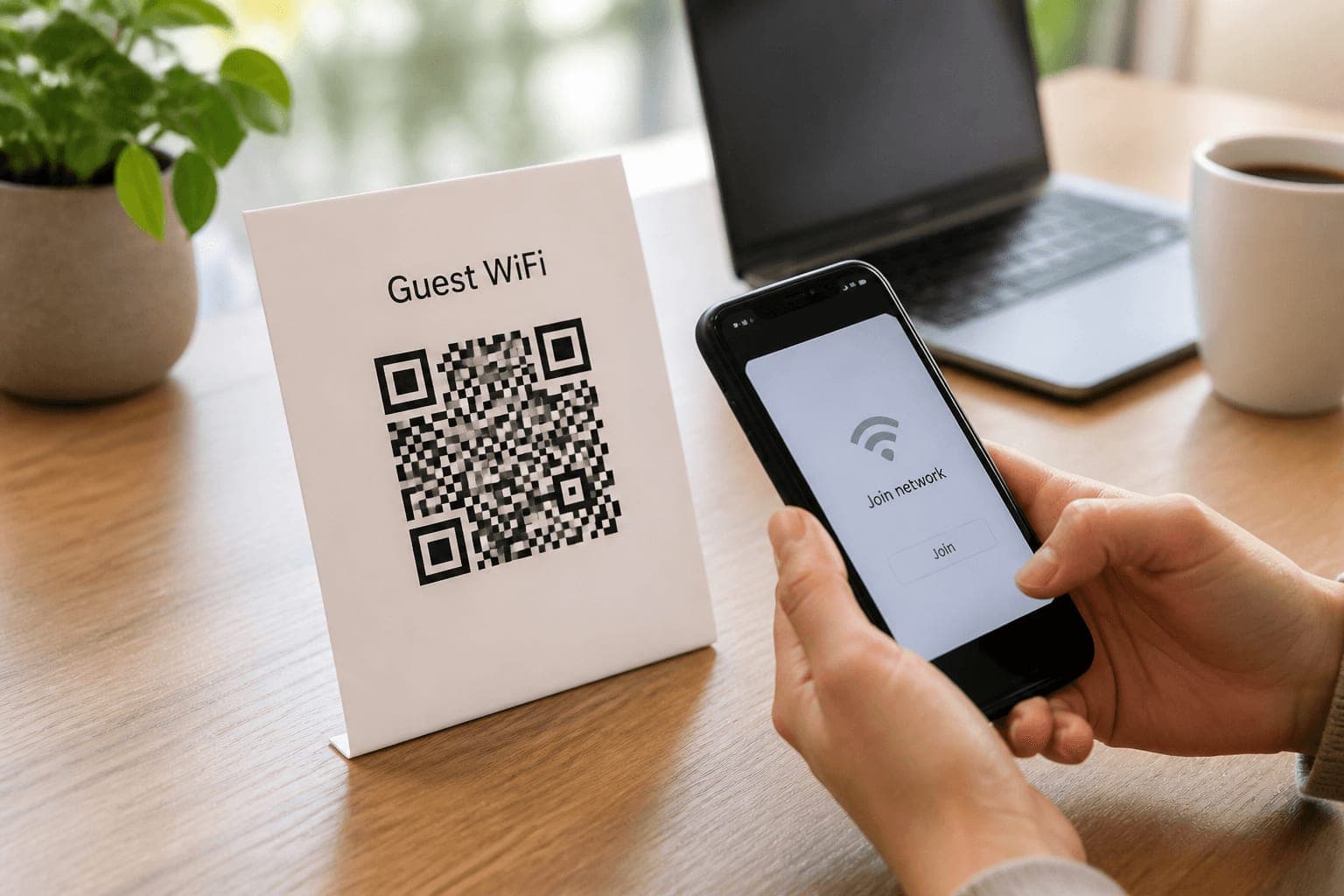
Every household and café knows the ritual. A guest asks for the WiFi, you dig out a password that looks like a software licence key, and then you spell it twice while they mistype the capital O as a zero. A WiFi QR code ends that ritual. The guest opens their camera, points it at a small square on the fridge or the table tent, and the phone offers to join the network with the credentials already filled in.
You do not need a special app on their phone for this to work. Modern iPhones and Android phones already understand the standard WiFi QR payload. What you do need is a code that encodes the right network name, the right security type and the right password — and a print that is large and high-contrast enough to scan from a metre away.
This guide shows how to make a free WiFi QR code in your browser, how to avoid the three mistakes that make codes fail at the door, where to place a printable guest WiFi QR code, and when you should not put your main home password on the wall at all.
Quick steps
- Open the free WiFi QR code generator in your browser.
- Type the network name (SSID) exactly as it appears on the router or phone — capitals included.
- Choose the security type (usually WPA/WPA2/WPA3) and enter the password carefully.
- Download the PNG for a quick print, or the SVG if you are dropping it into a design file.
- Print it at least a few centimetres wide, leave a quiet white margin, and test the scan before you laminate it.
What a WiFi QR code actually contains
A WiFi QR code is not a website link. It holds a short structured string that phones recognise as network credentials: the SSID (network name), the security type, and the password. When the camera reads it, iOS and Android can offer a one-tap join instead of sending the guest to a webpage.
That design is why a printed WiFi password QR code keeps working offline, years later, with no subscription and no middleman. There is no redirect that can expire and no account that can lapse. The trade-off is honesty: anyone who can photograph the code has the same access as anyone who can read a password written on a sticky note. Treat the print like the password itself.
iPhones have been able to join from the built-in Camera app for years. Android support is built into recent system cameras and Google Lens on older devices. Guests do not install your branding app — they use the phone they already unlocked at the door.
How to create a WiFi QR code in under a minute
The fastest free path is a browser generator that builds the code on your own device. Use the free WiFi QR code generator — type three fields, download an image, and print. Prefer tools that state clearly that nothing is uploaded: you are putting a live network password into a form, and that password should never become someone else's server log.
Copy the SSID from a device that is already connected rather than from memory. Network names are case-sensitive, and a single wrong capital letter produces a code that looks perfect and fails every scan. The same goes for the password — paste it once from your router admin page or password manager, then confirm the first and last characters before you download.
Security type is usually WPA or WPA2/WPA3 for a modern home or shop router. Older open networks (rare and unwise for guests) use a different flag. If your router offers a separate guest network, encode that SSID instead of your main LAN: guests get internet without a path into printers, NAS boxes and smart-home hubs.
- SSID: exact spelling and capitals from a connected device.
- Password: paste once, verify ends match, never retype from memory if you can avoid it.
- Security: WPA/WPA2/WPA3 for almost every modern router.
- Prefer a guest SSID when your router has one.
- Download PNG for print-and-go, SVG for Canva, Word or a print shop.
Make it printable: size, contrast and the quiet zone
A WiFi QR code that works on a bright phone screen can still fail on paper. Contrast comes first: keep the modules dark on a light background. Light-grey ink on kraft card, or a code printed over a busy photo, is the most common reason guests say “it will not scan”.
Size comes second. As a rough rule, the printed code should be about a tenth of the scanning distance. A table-tent code read from 30–40 cm can be a few centimetres across; a wall code read from the sofa needs to be larger. Leave the quiet zone — the empty white margin around the pattern — alone. Cropping it tight to save ink is a classic own goal.
Test before you commit. Print a draft on ordinary paper, walk to the real spot with two different phones, and only then laminate or send the file to a print shop. If you add a logo in the centre, use a high error-correction level so the obscured modules can still be recovered — and keep the logo small.
- Dark modules on a white or near-white field.
- Print wider than you think for wall mounts.
- Keep a clear quiet zone around the square.
- Test with an iPhone and an Android before laminating.
- Avoid low-contrast novelty colours for the actual modules.
Where guest WiFi QR codes work best
Homes: a small card on the fridge, a frame in the hallway, or the back of the router cupboard door for family who still forget. Airbnb and short-stay hosts often put a printable WiFi QR code in the welcome binder next to the checkout checklist so guests are online before they unpack.
Cafés, salons and waiting rooms: a table tent or a discreet wall plaque beats shouting the password across a busy room. Keep the print clean and durable — wipeable laminate survives coffee better than bare ink. Restaurants that rotate guest passwords monthly should reprint rather than covering an old code with stickers; half-covered modules do not scan.
Offices and co-working: put guest WiFi on reception, not on every meeting-room TV. Separating guest traffic from the corporate LAN is both a courtesy and a security baseline. If your venue already uses a captive portal, a QR that only opens the portal URL may be more honest than encoding a shared PSK you change every week.
Security: when a WiFi QR code is a bad idea
A code is as strong as the password inside it and as public as the place you hang it. Do not encode your primary home network if that network also reaches work laptops, cameras or a NAS full of family photos. Create a guest network with client isolation, encode that instead, and leave the main SSID off the wall.
Change the guest password when people who should no longer have access leave — flatmates, contractors, seasonal staff. Updating the password means updating every printed code. Keep the generator file or SVG in a private folder so reprinting takes a minute, not an archaeology project.
Never paste the main office WiFi password into a random website that does not explain where processing happens. Prefer a local, browser-based generator, and clear the form when you are done if you are on a shared computer.
Troubleshooting a WiFi QR code that will not connect
If the phone sees the code but fails to join, the credentials are usually wrong — SSID capitalisation, an extra space at the end of the password, or the wrong security type. Regenerate from known-good values rather than “fixing” the image in an editor.
If the camera never highlights the code, fix the print: more size, more contrast, more light, less glare on laminate. Move a few steps closer. Some Android skins need Google Lens if the stock camera ignores WiFi payloads.
If one brand of phone works and another does not, confirm both are recent enough and that the network is 2.4 GHz or dual-band reachable from where guests stand. A 5 GHz-only SSID with weak coverage at the door will look like a QR failure when it is a radio problem.
- Fails after a prompt: re-check SSID, password and WPA type.
- Never detects the square: enlarge, darken, reduce glare.
- Works on iPhone only: try Lens on Android, or update the camera app.
- Prompt appears but join fails at the door: check band and signal, not only the code.
Frequently asked questions
Use a free WiFi QR code generator in your browser, enter the network name, security type and password, then download a PNG or SVG. Prefer a tool that builds the code on your device so the password is never uploaded.
Yes on modern devices. iPhone Camera can offer to join the network directly. Recent Android cameras do the same; older Androids can use Google Lens. Guests should not need to install anything.
The SSID (network name), the security type such as WPA/WPA2, and the password. It is not a website link — the phone reads credentials and can join locally.
Usually print quality or credentials. Enlarge the code, keep dark modules on a light background, leave a quiet margin, and confirm the SSID capitals and password match the router exactly.
Only if the generator runs in your browser and states that nothing is uploaded. You are entering a live password — avoid unknown upload sites and clear shared computers when finished.
Better to publish a guest network QR if your router supports one. A fridge code is convenient, but anyone who photographs it gets network access, so keep cameras and private shares off that SSID.
Large enough for the real scanning distance — a few centimetres for a table tent, larger for a wall. Keep high contrast and do not crop the white quiet zone around the pattern.
Yes if you use high error correction and keep the logo small in the centre. Test scans after you add branding; a logo that covers too much of the pattern will fail.
Generate the code for your guest SSID, download a high-resolution PNG or SVG, print on a wipeable or laminated card, and place it where guests naturally look when they sit down or check in.
Static codes do not expire by themselves. They stop working when you change the password or SSID, or if a third-party dynamic QR service in the middle shuts down — which is why a direct, static code is usually better for print.