

PDFs guide
How to Merge PDF Files Online Free — Combine Scans Without Uploading
Six separate scans and one attachment field. Here is how to merge PDF files online free in your browser — reorder pages, keep text selectable, and skip the upload box that copies your documents to a stranger's server.
By Pixelandpdf · Published · Updated · 11 min read
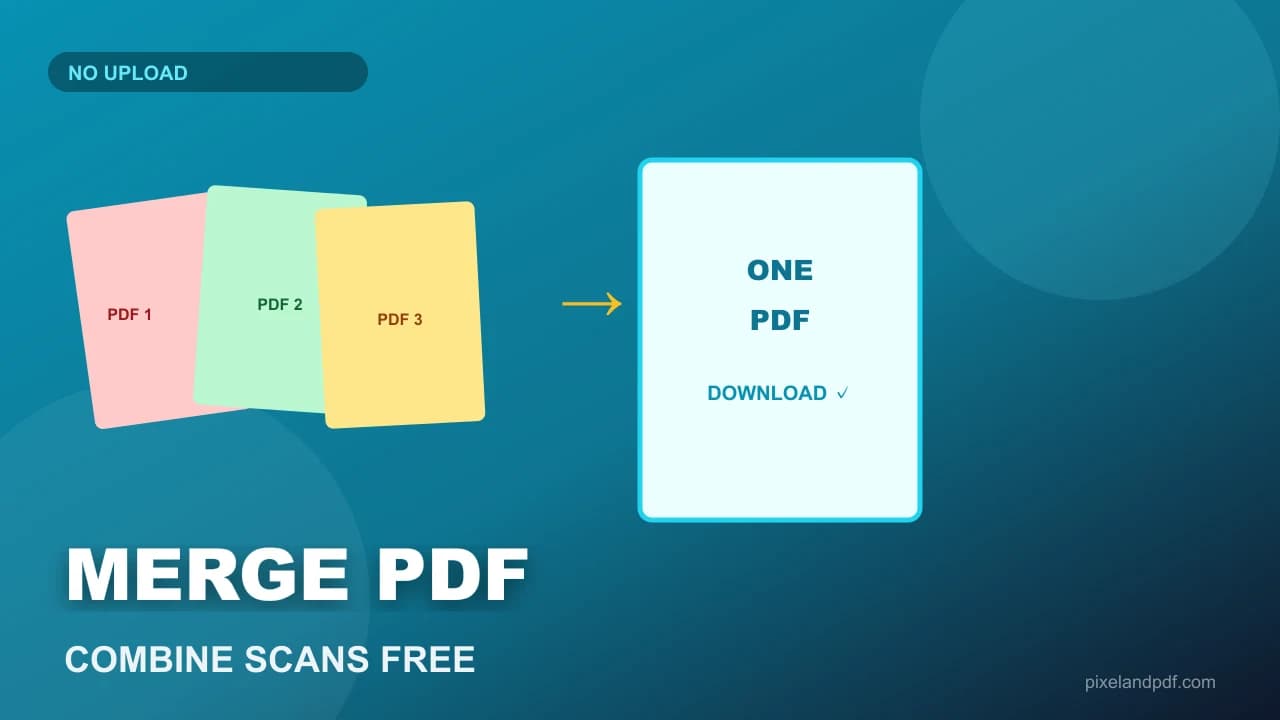
You have six PDFs and one upload field. A job portal wants a single attachment containing your cover letter, CV, degree certificate and three supporting documents. A landlord wants one file, not a WhatsApp burst of separate scans. A visa form accepts one combined PDF but rejects a ZIP. The fix is the same: merge PDF files into one document in the right page order, then submit.
Search for merge PDF online free and the first page is almost always an upload box. Drop your files, wait, download — and hope the site does not keep a copy of your passport scan on its servers. For payslips, medical letters, tenancy agreements and application packs, that trade is unacceptable. The better path is a PDF merger that runs entirely in your browser: nothing uploaded, nothing stored, no account and no watermark on the output.
This guide covers the fastest free method to merge PDF files online, what page order conventions recruiters and portals expect, what survives when you combine files (and what does not), when to merge first and compress second, and how to troubleshoot a merged file that is still rejected. Everything here is free and runs on your device.
Quick steps
- Gather every PDF you need in the submission — cover letter, CV, certificates, ID copies.
- Open a browser-based PDF merger and drop the files onto the page in rough order.
- Drag the list into the final sequence before you merge — page order is hard to fix afterwards.
- Click Merge and download the combined PDF; open it and scroll through every page.
- If the portal has a size cap, compress the merged file once rather than compressing each part separately.
The fastest free way to merge PDF files online
For a single submission you need to finish in the next few minutes, a browser-based PDF merger is the shortest route. Open Merge PDF, drop your files, reorder them, and download one combined document. There is nothing to install, no licence, and no account.
The critical detail is where the work happens. Plenty of free PDF sites upload your files to their servers, process them there, and email you about a subscription afterwards. That is a poor trade when the documents are identity scans, signed contracts or salary slips, because you have permanently placed copies on hardware you do not control. A merger that runs locally never has your files to begin with.
After merging, open the result and scroll every page. Confirm nothing is upside down, no certificate is missing, and the page count matches what you expect. A merged file that skips page three of your degree scan will be rejected by a human reviewer later — a slower failure than a portal error message.
- Drop files, reorder, merge, download — four steps, no install.
- Prefer a local merger so private documents never leave your device.
- Scroll the output before submitting — missing pages are a common mistake.
- Rename the output to something the recipient can file, not 'merged.pdf'.
Page order conventions for application packs
Recruiters and admissions portals read application packs in a predictable sequence even when the form does not spell it out. The convention is cover letter first, then CV or resume, then certificates and supporting documents in the order they appear on the checklist. Putting the CV before the cover letter is not a rejection offence, but it slows a human reviewer who expects a letter to set context.
When the form lists documents by name — 'Document 1: ID proof, Document 2: Address proof' — match that order exactly. Some automated systems flag submissions where page content does not align with the declared sequence, even when a human would not care.
Reorder before you merge, not after. Most free mergers do not let you insert a page between existing ones without starting again. Drag the file list into final order, merge once, and keep the individual originals until the portal accepts the upload.
What carries over when you combine PDF files
Merging copies pages rather than re-printing them, so the things that live on a page survive: text and its selectability, embedded fonts, vector graphics, images at their original resolution, and internal page links. That is why a merged file is normally about the sum of its inputs in size, and why merging does not degrade quality the way re-compressing does.
Some document-level features are attached to the file rather than to a page, and those do not always come through. Bookmarks and outlines, form fields and their values, digital signatures, and attached files are the usual casualties — a signature in particular is invalidated by definition, because the bytes it signed have changed.
If a form needs to stay fillable, keep it as its own file and merge the flat documents around it. If a portal requires a digitally signed PDF, merge first and sign last — or submit signed documents separately when the form allows multiple attachments.
- Survives: text, fonts, images, vectors, page-level links.
- Lost or broken: bookmarks, form fields, digital signatures, attachments.
- Merged size ≈ sum of inputs — merging does not shrink files.
- Sign after merging if the portal requires a digital signature.
Merge first, then compress — the order matters
A merged application pack is often too big for the form or mailbox it is destined for, and the order of operations matters. Merge first, then compress the combined file once. Compressing each part separately and then joining them means each page has already lost quality before the second pass, and the total rarely lands where you wanted anyway.
For strict upload limits, open Compress PDF to 200KB or Compress PDF to 1MB on the merged result rather than compressing each attachment separately. One compression pass on a complete document preserves more readability than two passes on halves.
If the merged file is still over the cap after one compression pass, the problem is usually page count or scan resolution — not the merge itself. Remove pages the form did not ask for, rescan at lower DPI, or split into two submissions when the portal allows multiple files.
When merging is the wrong tool
Merging combines what you have; it does not fix what is wrong with individual files. If one scan is password-protected and the merger cannot read it, unlock that file first with a local Unlock PDF tool. If one document is a JPG saved with a .pdf extension, convert it properly before merging.
When a portal wants documents uploaded separately — 'Attach CV', 'Attach degree certificate' as distinct fields — merging them into one file will fail even if the combined PDF is perfect. Read the form instructions before you merge.
When only part of a long PDF is relevant, splitting beats merging. If a 40-page scan contains one certificate the form asked for, extract that page rather than merging the entire scan into your pack and then fighting a size limit.
Troubleshooting: merged file rejected or still too large
If the portal rejects the upload while the file is under the size limit, the problem may not be size. Some systems reject password-protected PDFs, files with more than a set page count, or documents that fail a silent OCR check. Try a different browser, remove protection from a copy, and read the error text carefully.
If the merged file is much larger than you expected, one input was probably a high-resolution phone scan. Merging does not add weight — it stacks it. Identify the heavy file by checking each original's size, compress or rescan that one source, then merge again from the originals.
If text that was selectable before merging is no longer selectable afterwards, one of the inputs was a scan disguised as a PDF, not a merge failure. Scanned pages behave as images regardless of how you combine them. OCR is a separate step this guide does not cover.
If the merge button does nothing, check whether any input exceeds the tool's per-file size cap — often twenty-five megabytes per file on browser-based mergers. Split oversized scans or compress them individually before merging.
- Rejected under the limit: check password protection, page count, naming rules.
- Unexpectedly large: one input is a heavy scan — fix the source, re-merge.
- Non-selectable text: the input was a scan, not a text PDF.
- Merge fails silently: a single file may exceed the per-file size cap.
Frequently asked questions
Open a browser-based PDF merger, drop two or more PDFs, reorder them, and click Merge. Download the combined file. On PixelAndPDF the merger runs locally — nothing is uploaded and there is no watermark.
Yes, if you use a tool that processes files in your browser with local APIs. The PDFs never leave your device. Avoid upload-based mergers for identity scans, contracts and medical documents.
No. Merging copies pages as they are. Quality only drops if you compress before or after merging. Merge first, then compress once if you need a smaller file.
Cover letter first, then CV, then certificates and supporting documents in checklist order. Reorder before merging — fixing page order afterwards usually means starting again.
Browser-based tools set practical limits based on device memory — often dozens of files and hundreds of pages. If a merge fails, try smaller batches or compress heavy scans first.
Yes. A digital signature covers specific bytes, and merging changes those bytes. Sign after merging, or submit signed documents separately when the form allows.
Export each scan as PDF from your notes or scanner app, drop all files into the merger, reorder, and merge. If scans are photos rather than proper PDFs, use a scan app that outputs searchable PDF first.
After. Merge the complete pack first, then compress the combined file once. Compressing each part separately degrades quality twice and rarely hits the target size.
Only if the merger can read it. Unlock the protected file locally first, then merge the open copy. Never upload password-protected identity documents to server-side unlock tools.
Because merging stacks file sizes rather than shrinking them. Compress the merged result once, or reduce scan resolution and page count before merging. Remove pages the form did not request.