
PDFs guide
How to Compress a PDF to 1MB Free — and Clear Strict KB Limits
A PDF that will not upload is almost never a mystery. Here is how to pick the right size target (1MB, 500KB, 200KB), shrink the file in your browser without uploading it, and keep names and signatures readable.
By Pixelandpdf · Published · Updated · 11 min read
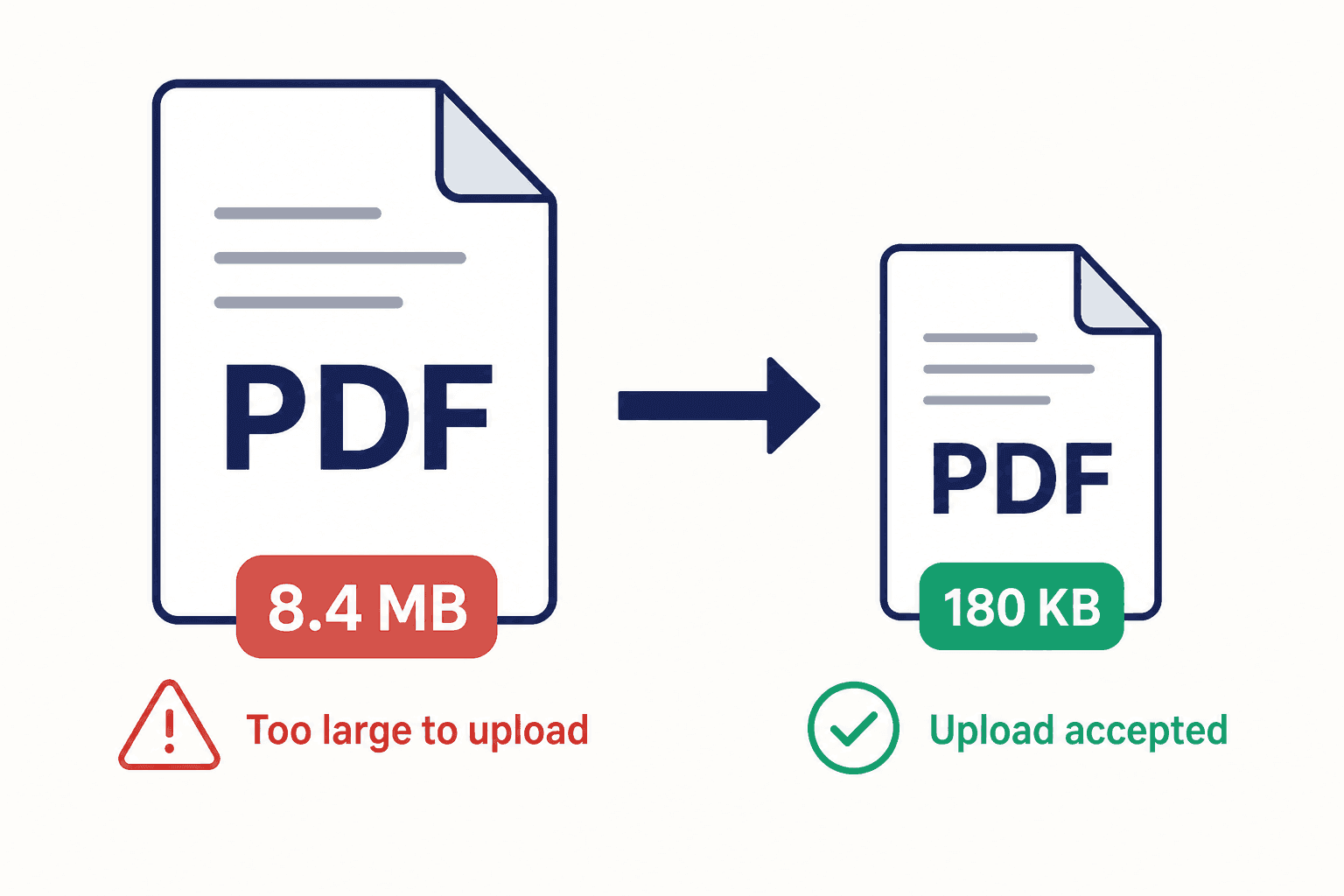
To compress a PDF to 1MB for free: open a browser compressor that presets a 1 MB target, drop the file, wait until it reports under 1 MB, then download — no desktop install and, on PixelAndPDF, no upload. If a form wants 500 KB or 200 KB instead, use that preset; guessing a quality slider wastes time.
You have filled in the form, scanned the certificate, clicked upload, and the portal has thrown back something unhelpful: file size exceeds limit. Maybe it wanted 200 KB and your scan is 4 MB. Maybe Gmail refused a 26 MB report. Either way you now need to reduce the PDF file size, and the top search results are mostly identical upload boxes that will not tell you what went wrong.
This guide covers how to work out your real target size, how to compress a PDF in your browser without uploading it anywhere, what to do when a portal insists on a brutal 100 KB or 200 KB cap, and how to stop producing oversized PDFs in the first place. Everything here is free and none of it needs Acrobat.
Quick steps
- Check the exact limit you have been given (1 MB, 500 KB, 200 KB, etc.), and whether it is per file or per submission.
- Look at the PDF: if you can select the text with your cursor it is a text PDF, if not it is a scan.
- Open the matching free compressor (1 MB, 500 KB, 200 KB or balanced) and drop the file onto the page.
- Wait until the result is under the cap, then open it and confirm names, dates and signatures are still legible.
- Download and submit — keep the original until the portal accepts the upload.
How to compress a PDF to 1MB for free
Most grant portals, journal systems and CMS uploads that say “max 1 MB” mean that number literally. The fastest free path is a preset compress-PDF-to-1MB tool in your browser: drop the file, let it step quality down until the size is under 1 MB, then download. Prefer a local compressor so payslips and contracts never leave your device.
1 MB is the usual sweet spot for portfolios and multi-page reports that still need to look acceptable on screen. If the portal is stricter, switch to a 500 KB or 200 KB preset rather than crushing a 1 MB result a second time — recompressing mush destroys readability.
If a long illustrated PDF still cannot fit under 1 MB without turning pages grey, split by chapter or remove unused pages first. Compression divides a fixed budget across every page; fewer pages is the only method that loses no quality.
- Use a 1 MB preset when the form literally caps at one megabyte.
- Use 500 KB for email-friendly attachments and mid-tier upload caps.
- Use 200 KB / 100 KB for government and exam portals after fixing scan DPI.
- Never recompress an already crushed file — go back to the original.
Why is my PDF still over 1MB?
If the compressor returns the smallest readable file and it is still over 1 MB, you have hit a quality floor: full-page colour photographs, dozens of scan pages, or a single enormous embedded image. The tool is refusing mush on purpose.
Fix the source before you ask for a tighter number. Delete blank and appendix pages, convert ink-on-paper scans to greyscale, rescan at about 150 dpi, or split the document so each part has its own 1 MB budget. Those steps usually beat another quality slider click.
First work out why your PDF is so big
Two documents can both be ten pages long and differ in size by a factor of fifty. The difference is what is actually stored inside them. A PDF exported from Word, Google Docs or LaTeX stores your words as text plus a font, which is extremely compact — ten pages of prose can sit comfortably under 200 KB without any compression at all. A PDF produced by a scanner or a phone stores a full photograph of each page, and a photograph of an A4 page at a high resolution is a large image before you have read a single word of it.
There is a five-second test for this. Open the PDF and try to select a sentence with your cursor. If a text cursor appears and you can highlight individual words, you have a text PDF. If your cursor draws a rectangle over the page like it would over a photo, you have a scan. Almost every genuinely oversized PDF people struggle to upload falls into the second group.
This matters because the two respond to compression completely differently. Scans shrink dramatically, often by 90% or more, because there is a lot of redundant image data to throw away. Text PDFs barely shrink, because there was never much fat to trim. If a text-only document is somehow 6 MB, the weight is usually one embedded high-resolution logo, a full set of embedded fonts, or a photograph somebody pasted into the header.
- Selectable text and small file: nothing to fix, the limit is probably per submission not per file.
- Selectable text but huge: hunt for an embedded image or an unnecessarily complete font set.
- No selectable text: it is a scan, and compression will help enormously.
- Pages that look like photographs of a desk: it was shot on a phone, and resolution is the problem.
Decide the target size before you compress anything
People lose a lot of time compressing to no particular number, checking, and compressing again. Find the actual requirement first. Government and examination portals in many countries state a hard cap in the upload field itself, and 100 KB and 200 KB are the two you will meet most often for certificates, photographs and identity documents. Job application systems tend to be more generous, usually somewhere between 1 MB and 5 MB for a CV or portfolio. University and school systems vary wildly and often publish the limit in a PDF nobody reads.
Email is a different problem, and the published limit is misleading. Gmail advertises 25 MB and Outlook consumer accounts around 20 MB, but attachments are encoded for transit in a way that inflates them by roughly a third. That means a 24 MB file can be refused by a service that claims to accept 25 MB, because on the wire it has become closer to 32 MB. The practical rule is to keep the real file under about three quarters of the stated cap: under roughly 18 MB for Gmail, and under roughly 15 MB for a consumer Outlook account. Corporate mail servers are frequently tighter than either, and the recipient's server gets a veto you cannot see.
One more thing worth checking before you start: whether the cap applies to each file or to the whole submission. If a portal allows 2 MB total and you are attaching four documents, compressing one of them to 200 KB does not help if the other three are still a megabyte each.
- 100 KB and 200 KB: government forms, exam portals, KYC and identity documents.
- 500 KB to 1 MB: scanned certificates, supporting paperwork, multi-page submissions.
- Under about 18 MB: safe ceiling for a Gmail attachment after encoding overhead.
- Under about 15 MB: safe ceiling for a personal Outlook or iCloud address.
- Over 10 MB in a professional context: send a link instead of an attachment.
The fastest free method: compress the PDF in your browser
For a single document you need to submit in the next few minutes, a browser-based compressor is the shortest route. You open a page, drop the PDF on it, and download a smaller one. There is nothing to install, no licence, and no account. For common caps, try Compress PDF to 1MB, Compress PDF to 200KB, or the general Compress PDF tool when you only need a smaller file.
The important detail is where the work happens. Plenty of free PDF sites upload your file to their servers, process it there, and email you about a subscription afterwards. That is a poor trade when the document is a payslip, a passport scan, a medical letter or a signed contract, because you have permanently placed a copy of it on hardware you do not control. A tool that compresses locally never has your file to begin with, which removes the question entirely.
Whichever tool you use, treat the output as a draft until you have looked at it. Open the compressed PDF, zoom to the parts that matter — the registration number, the date, the signature, the small print at the bottom of a certificate — and check they are still readable. A file that meets the size limit but cannot be read will be rejected by a human later, which is a slower and more annoying failure than a rejected upload.
Hitting a strict 100 KB or 200 KB limit without ruining the document
Very low caps are the hardest case, and they are almost always applied to scans. A single page scanned at 600 dpi in full colour can easily be 3 MB or more on its own, so getting to 200 KB means removing a great deal of data. It is usually achievable, but only if you are willing to give up resolution and colour you did not need.
The most effective lever is resolution. Documents do not need photographic detail; they need legible characters. Somewhere around 150 dpi is the sweet spot for a text document that will be read on screen, and 200 dpi is generous. If your scanner defaulted to 600 dpi, rescanning at 150 will often get you under the cap before you compress at all. The second lever is colour. A black-ink document scanned in colour stores three channels of information about a page that only really has two tones. Greyscale, or black and white for clean printed text, cuts the size substantially.
The third lever is page count, and it is the one people forget. If a form asks for one certificate and your PDF contains the certificate plus three pages of covering letter, delete the pages you were not asked for. Fewer pages is the only compression method that loses no quality whatsoever. Work in that order — resolution, then colour, then pages, then compression — and you will usually land under a hard cap with the text still crisp.
- Rescan or export at 150 dpi rather than 300 or 600 dpi.
- Choose greyscale for ink on paper, and reserve colour for stamps, seals and photographs.
- Remove pages the form did not ask for before you compress.
- Crop away the desk, shadows and margins if the page was photographed rather than scanned.
- Compress last, once the source is already sensible.
Stop creating oversized PDFs in the first place
Most repeat trips to a compressor are avoidable, because the file was created badly rather than compressed badly. If you regularly submit paperwork, adjusting how you scan and export saves more time than any tool will.
When you scan, set the resolution deliberately instead of accepting the default, and choose greyscale for ordinary documents. Scanner software often ships with a photographic preset that is entirely wrong for a printed page. When you photograph a document with a phone, use the document scanning mode in your notes or files app rather than the plain camera. It flattens perspective, crops to the page edges and applies sensible contrast, and it produces a far smaller and far more readable file than a photograph of a piece of paper lying on a table.
When you export from a word processor or a slide deck, look for a reduced size or web quality option rather than print quality. Print quality embeds images at a resolution nobody viewing the file on a laptop will ever benefit from. If a document contains photographs you added yourself, resizing those images before you insert them is more effective than compressing the finished PDF, because you are removing the weight at source instead of degrading it afterwards.
When compressing is the wrong answer
Compression is not the only way to make a submission fit, and sometimes it is the worst way. If a 40 MB file is 40 MB because it holds 200 scanned pages, squeezing every page until the text turns mushy is a poor outcome when the real answer is to send the ten pages that were requested.
Splitting is the right tool when a portal wants documents separately, or when only part of a long file is relevant. Merging is the right tool for the opposite problem: a form that accepts a single attachment while you are holding six separate scans. Combining them into one PDF and then compressing that once is tidier than compressing six files individually, and it avoids the version confusion that comes from a folder full of similarly named documents.
If the file is genuinely large and genuinely all needed — a full architectural set, a scanned archive, a video-heavy report — stop fighting the attachment limit and share a link from cloud storage instead. It arrives intact, it does not sit in anyone's mailbox quota, and you can revoke it later. Compression is for meeting a limit that has a sensible reason behind it, not for forcing an inappropriate file down a channel that was never meant to carry it.
Troubleshooting: still too big, or now unreadable
If the compressed file is barely smaller than the original, you almost certainly have a text PDF rather than a scan. There was little redundancy to remove, so the compressor could not do much. Look for a single heavy element instead: an embedded photograph, a scanned signature pasted at full camera resolution, or a logo saved as a huge image. Replacing that one item usually achieves more than any global setting.
If the text has gone soft or grey, you have pushed resolution too far down for the content. Go back to the original and compress less aggressively, or fix the source by rescanning at a modest resolution instead of asking a compressor to rescue a 600 dpi colour scan. Repeatedly compressing an already compressed file is the most common cause of unreadable output, and it is worth remembering that each pass throws away detail permanently. Always keep the original.
If the upload still fails while your file is comfortably under the limit, the size may not be the problem. Some portals reject password-protected or digitally signed files, reject anything that is not a single page, silently require a specific naming pattern, or fail on a browser they do not support. Try a different browser, remove protection from a copy rather than the original, and read the error text carefully rather than assuming it is about size. And check whether the cap was per submission all along.
- Barely any reduction: it is a text PDF, so find the one heavy image instead.
- Blurry text: compress the original less, or rescan at 150 dpi and start again.
- Rejected while under the limit: look for password protection, page count or naming rules.
- Works at home but not at the office: a managed browser may be blocking local processing.
Frequently asked questions
Open a browser-based compressor, drop the PDF and download the smaller file. For a 1 MB portal cap use a tool with a 1 MB preset; for 200 KB government forms pick a 200 KB target. On a local compressor nothing is uploaded — scans can often shrink 80–95% while text stays readable.
Because it probably contains images rather than text. Scanners and phone cameras store a photograph of every page, and one high-resolution colour page can be several megabytes on its own. Try selecting the text with your cursor: if you cannot, you have a scan.
Reduce the source first. Rescan or export at around 150 dpi, switch from colour to greyscale, and delete any pages the form did not ask for. Then compress with 200 KB as the target. Doing it in that order keeps the text legible instead of grey and smeared.
Image content loses some detail, which is exactly where the size saving comes from. Text and vector graphics normally survive intact. Moderate compression on a scan is usually invisible at reading size; aggressive compression on an already compressed file is where documents start looking soft.
Attachments are encoded for transit and that inflates them by roughly a third, so a 24 MB file arrives at the server closer to 32 MB. Keep real files under about 18 MB for Gmail and about 15 MB for a personal Outlook address, and send a link for anything larger.
It depends entirely on whether the file leaves your device. Many free sites upload your document to their servers to process it. For payslips, ID scans, contracts and medical letters, choose a tool that states it compresses locally in the browser, so no copy is created anywhere.
About 150 dpi is enough for a document that will be read on screen, and 200 dpi is comfortable if it may be printed. The 600 dpi presets that scanner software often defaults to are designed for photographs and are the single most common reason scans are oversized.
Target the images rather than the whole file. Lower the resolution of scanned pages, convert ink-on-paper pages to greyscale, replace any oversized embedded photographs, and remove pages you do not need. Text itself takes up almost no space, so it does not need to be sacrificed.
Size may not be the issue. Check whether the limit applies to the whole submission rather than each file, whether the portal rejects password-protected or signed PDFs, whether it expects a particular file name, and whether it works in a different browser.
Split it when only part of the document is actually required, or when the portal wants documents uploaded separately. Compress when every page is needed and the file simply has to fit. If several scans must arrive as one attachment, merge them first and compress the result once.