
Images guide
How to Convert JPG to PDF — Free Methods for Forms, Email and Phone Photos
Portals want a PDF. Your camera roll is full of JPGs. Here is how to convert JPG to PDF — one photo or many pages — without installing software or uploading private scans to a stranger’s server.
By Pixelandpdf · Published · Updated · 10 min read
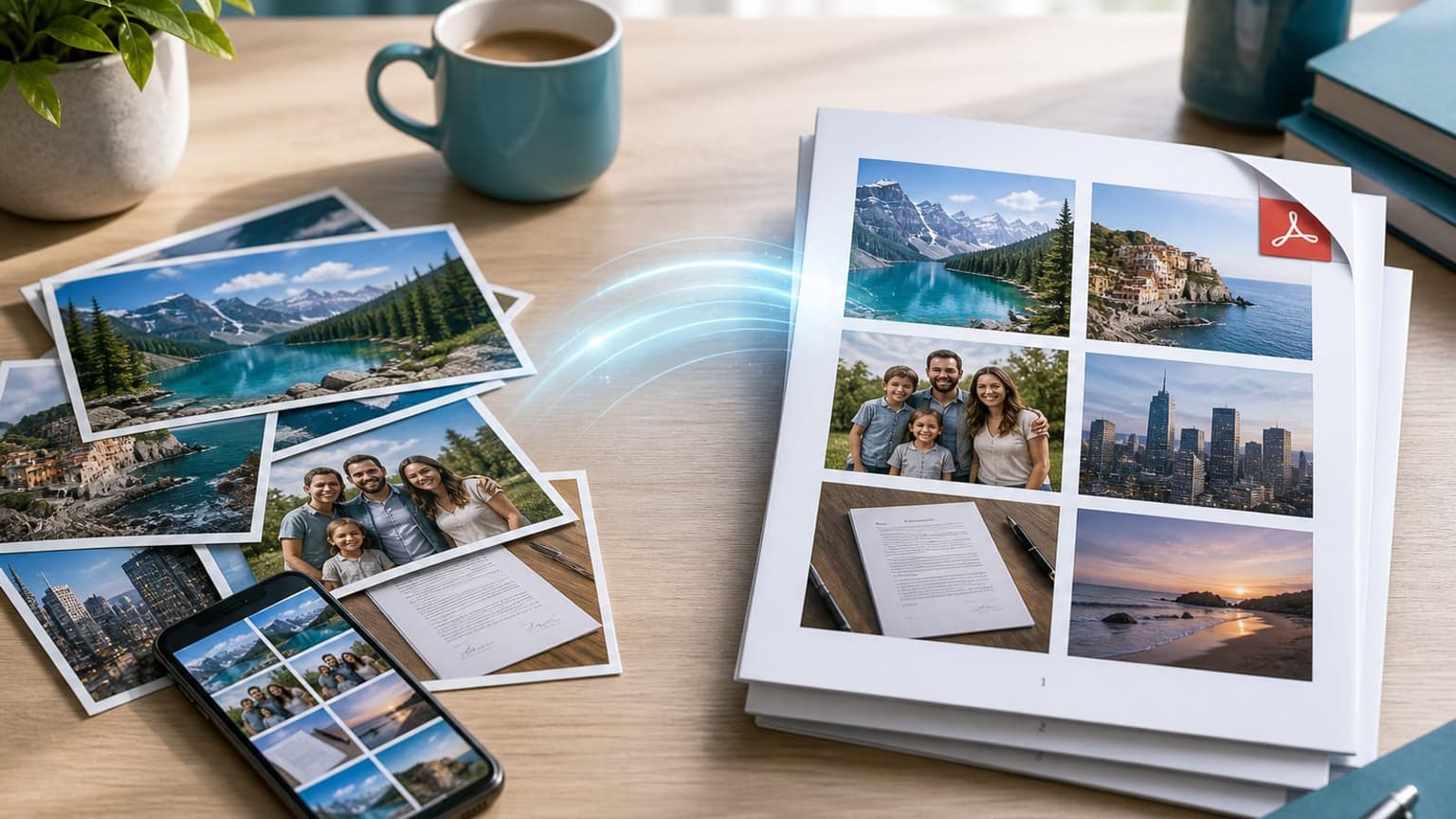
Search “how to convert JPG to PDF” and you will find the same pattern: a big upload box, a promise that it is free, and a download that only appears after an account wall or a watermark. That is fine when the file is a holiday snap. It is a bad trade when the JPGs are a passport page, a signed tenancy form, a payslip photographed on a phone, or school certificates someone asked you to submit as one PDF.
JPG (and JPEG — same format, different spelling) is still what most phones, WhatsApp exports and scanners leave you with. PDF is what admissions portals, landlords, HR desks and many government forms demand. Converting JPG to PDF is not a design problem; it is a packaging problem. You need page order that matches the checklist, a file size the portal will accept, and a process that does not quietly copy your documents onto someone else’s disk.
This guide covers the fastest free way to convert JPG to PDF in your browser, how to combine multiple images into one multi-page PDF, when to pick A4 or US Letter instead of original photo size, what to do with iPhone HEIC files first, and how to shrink the finished PDF if an upload limit still rejects it. Nothing here requires Acrobat, and the recommended method never uploads your photos.
Quick steps
- Open the free JPG to PDF converter in your browser.
- Drop one or more JPG, JPEG, PNG or WebP files (or pick them from your phone or PC).
- Choose page layout — Fit on A4 or US Letter for forms, or original size for a photo PDF — then reorder pages so page 1 matches the form checklist.
- Tap Convert to PDF and wait while each page is built locally.
- Download the PDF, open it once to check order and clarity, then submit or email it.
Why forms ask for PDF when you only have JPG photos
A JPG is a picture. A PDF is a document container. Portals standardise on PDF because one file keeps page order fixed, opens the same way in Chrome, Preview and Adobe Reader, and can hold several photos as numbered pages instead of a messy email with ten attachments named IMG_4821.JPG. When a landlord says “send the ID as PDF” or a university portal rejects every JPG upload, they are not being fussy about pixels — they want a single packet they can archive and print.
That is why “convert JPG to PDF”, “JPEG to PDF” and “photo to PDF” stay high-intent searches. People are usually mid-task: the form is open, the deadline is tonight, and the only copies of the paperwork are phone photos. The job is to turn those images into a PDF that looks intentional, not like a dump of the camera roll.
JPG and JPEG are the same format. If your files end in .jpeg, treat them the same as .jpg. PNG screenshots and WebP saves from the web often need to ride along in the same PDF; a good images-to-PDF tool accepts the mix so you are not hunting a second converter for one odd file.
- One PDF keeps page order and filenames under control for the reviewer.
- Many portals only expose a PDF upload field — JPG is rejected even when the content is fine.
- JPG and JPEG are interchangeable; PNG and WebP often belong in the same packet.
Fastest free method: convert JPG to PDF in your browser (no upload)
For a single photo or a short stack of scans, a browser-based JPG to PDF converter is the shortest path. You open the page, drop the images, convert, and download. There is nothing to install and no licence key.
The detail that matters is where the work runs. Upload converters send your JPGs to a remote server, build the PDF there, and often keep a temporary copy. That is a poor trade for identity documents, bank letters, medical forms or anything with an address on it. A converter that builds the PDF with JavaScript in your tab never has a file to store — your photos stay on the device that already holds them.
On PixelAndPDF the flow is deliberate: drop JPG/JPEG/PNG/WebP, set layout (A4, US Letter or original image size), reorder with up/down controls, convert, then download. Use the free JPG to PDF converter — pages are re-encoded through the canvas before they enter the PDF, which strips EXIF and GPS that phone cameras embed. There is no watermark and no sign-up between you and the file.
How to convert multiple JPG images into one PDF
Combining many photos into one PDF is the usual real-world job: three pages of a passport, a signed form plus a photo of a utility bill, or a sequence of certificate scans. Each image becomes a page. The order in your list becomes the order in the PDF, so fix that before you convert — putting the cover sheet second is how packets get rejected by tired clerks.
Name files helpfully before you drop them if your phone exported everything as IMG_####.JPG. Ascending sort in the file picker is not always chronological, and WhatsApp renames files in ways that scramble sequence. After conversion, open the PDF and flip through once. Checking takes ten seconds; redoing an application because page 2 and page 3 were swapped takes an afternoon.
Huge phone photos are scaled down slightly in a sensible tool so the PDF stays emailable. Aspect ratio stays intact so nothing looks stretched. If you need the packet even smaller after that, compress the PDF as a second step rather than crushing JPEG quality inside the photos first.
- Add up to the tool’s limit (thirty images on PixelAndPDF) — each becomes a page.
- Reorder before convert so page 1 matches the portal checklist.
- Open the finished PDF once before you upload or email it.
A4, US Letter or original size — which PDF layout to choose
Default “photo PDF” behaviour on many sites dumps each JPG onto a page at whatever pixel size the camera produced. That works for a personal album. It is awkward for print and for forms that expect something that looks like a document on A4 or US Letter paper.
Choose Fit on A4 when you are submitting to portals outside the United States, or when you might print the packet. Choose Fit on US Letter for many US schools, employers and agencies. Landscape photos should get a landscape page automatically so a wide receipt is not crushed into a tall empty frame. Choose original image size when you want a one-to-one photo PDF and print size does not matter.
Margins matter more than people think. A small inset keeps edges from clipping when a portal’s viewer or a printer applies its own crop. If a reviewer will stamp or annotate the PDF, A4/Letter with margins reads as a document; a full-bleed phone photo often reads as “they just renamed a JPG”.
Phone, Windows and Mac workflows that actually finish the job
On an iPhone or Android phone, open the JPG to PDF page in Safari or Chrome, allow file access, pick photos from the library, convert, then share or save the PDF to Files / Drive. Mobile browsers can do this; you do not need a separate “scanner app” subscription for a three-page packet.
On Windows, the same browser method avoids installing random desktop converters. If your photos are still HEIC from an iPhone, convert HEIC to JPG first, then build the PDF — Windows tools and many upload forms still prefer JPEG as the intermediate. On a Mac, Preview can create PDFs too, but a dedicated images-to-PDF page is faster when you need consistent A4 fit and a mix of PNG screenshots with JPG photos.
Whatever the device, keep the originals until the portal shows a successful upload. Conversion is cheap to repeat; hunting for the only clear photo of a stamp after you deleted it is not.
After convert: file size, quality and when to compress
A ten-page album of 12-megapixel phone photos can still be several megabytes as a PDF even when each page is embedded efficiently. Email and some portals will refuse that. If the PDF is too heavy, compress the PDF next — that targets the finished document. If a single photo is the problem before you even build the PDF (for example a form that also accepts JPG under 200 KB), compress the image first, then convert.
Re-encoding photos into PDF pages at a sensible quality is enough for forms and email. You should not see obvious mush at normal zoom. If text on a photographed page looks soft, the photo was soft to begin with — retake it in better light, square to the page, before you convert again. Compressing harder will not invent sharp letters.
Password-protecting or digitally signing is a separate step some workplaces require after the PDF exists. Do that on a copy. Never lock the only export you have.
- PDF too big for email or the portal → compress PDF.
- Single photo over a KB cap before packaging → compress image, then JPG to PDF.
- Blurry text → retake the photo; do not expect conversion to sharpen it.
What to avoid when you convert JPG to PDF online
Avoid tools that force an account before download, add a watermark on the free tier, or stay silent about uploads. If the privacy page cannot say plainly that processing is local, assume the file leaves your device.
Avoid converting from an already compressed, twice-forwarded WhatsApp image when you still have the original camera file. Each generation loses detail. Start from the best source you own.
Avoid stuffing unrelated photos into the same PDF “just in case”. Reviewers skim. Extra pages of clutter look careless and can trip per-submission size caps. Include what the checklist asked for, in that order, and stop.
Frequently asked questions
Open a browser-based JPG to PDF converter, drop your JPEG files, convert and download. Prefer a tool that builds the PDF on your device so nothing is uploaded. No install and no paid Acrobat licence are required for ordinary form packets.
Add every image to the converter queue, reorder them so page 1 is correct, then convert once. Each image becomes a page in a single PDF — that is what most portals mean by “upload as PDF”.
Yes. JPG and JPEG are the same image format. Converters that accept .jpg also accept .jpeg.
Yes. Open the converter in mobile Safari or Chrome, pick photos from your library, convert, and share or save the PDF. You do not need a separate paid scanner app for a short document packet.
Use A4 or US Letter when the PDF is for a form, print or formal submission. Use original image size when you only want a photo PDF and paper size does not matter.
Only if the tool processes files locally in your browser. Upload-based converters create a copy on a server you do not control. For ID scans, payslips and contracts, choose a no-upload converter.
Convert HEIC to JPG first, then drop the JPEGs into the JPG to PDF tool. Many Windows apps and portals still expect JPEG as the intermediate format.
Phone photos are high resolution. After you build the PDF, run it through a PDF compressor, or compress the heaviest images before converting. Check whether the portal’s limit is per file or for the whole submission.
Yes, if the converter accepts mixed formats. That is common when a packet mixes camera JPGs with a PNG screenshot of an email or portal confirmation.
Photos are re-packaged into PDF pages at high visual quality suitable for forms and email. Extremely large images may be scaled slightly so the PDF stays practical. Soft, dark phone photos stay soft — retake them if text must be crisp.